> ## Documentation Index
> Fetch the complete documentation index at: https://docs.edicek.com/llms.txt
> Use this file to discover all available pages before exploring further.

# Browser Extension

export const DownloadButton = ({href, label, icon, href2, label2, icon2, divider = true}) => <div style={{
  display: 'flex',
  flexWrap: 'wrap',
  gap: '10px',
  margin: divider ? '16px 0 28px' : '16px 0 10px',
  paddingBottom: divider ? '28px' : '0',
  borderBottom: divider ? '1px solid #ecdfcd' : 'none'
}}>
    <a href={href} target="_blank" rel="noreferrer" onMouseEnter={e => {
  e.currentTarget.style.background = '#333333';
}} onMouseLeave={e => {
  e.currentTarget.style.background = '#161616';
}} style={{
  display: 'inline-flex',
  alignItems: 'center',
  justifyContent: 'center',
  gap: '9px',
  height: '46px',
  padding: '0 22px',
  boxSizing: 'border-box',
  border: '1px solid transparent',
  borderRadius: '11px',
  background: '#161616',
  color: '#ffffff',
  fontWeight: 600,
  fontSize: '15px',
  lineHeight: 1,
  textDecoration: 'none',
  transition: 'background 0.15s ease'
}}>
      <svg width="17" height="17" viewBox="0 0 24 24" fill="none" stroke="currentColor" strokeWidth="2" strokeLinecap="round" strokeLinejoin="round" aria-hidden="true">
        {icon === 'open' ? <g>
            <path d="M7 17 17 7" />
            <path d="M8 7h9v9" />
          </g> : <g>
            <path d="M12 3v12" />
            <path d="m7 12 5 5 5-5" />
            <path d="M5 21h14" />
          </g>}
      </svg>
      {label}
    </a>
    {href2 ? <a href={href2} target="_blank" rel="noreferrer" onMouseEnter={e => {
  e.currentTarget.style.background = '#333333';
}} onMouseLeave={e => {
  e.currentTarget.style.background = '#161616';
}} style={{
  display: 'inline-flex',
  alignItems: 'center',
  justifyContent: 'center',
  gap: '9px',
  height: '46px',
  padding: '0 22px',
  boxSizing: 'border-box',
  border: '1px solid transparent',
  borderRadius: '11px',
  background: '#161616',
  color: '#ffffff',
  fontWeight: 600,
  fontSize: '15px',
  lineHeight: 1,
  textDecoration: 'none',
  transition: 'background 0.15s ease'
}}>
        <svg width="17" height="17" viewBox="0 0 24 24" fill="none" stroke="currentColor" strokeWidth="2" strokeLinecap="round" strokeLinejoin="round" aria-hidden="true">
          {icon2 === 'open' ? <g>
              <path d="M7 17 17 7" />
              <path d="M8 7h9v9" />
            </g> : <g>
              <path d="M12 3v12" />
              <path d="m7 12 5 5 5-5" />
              <path d="M5 21h14" />
            </g>}
        </svg>
        {label2}
      </a> : null}
  </div>;

export const LoopVideo = ({src, poster, variant, autoPreload}) => (variant === 'tall' || variant === 'classic') && typeof autoPreload === 'boolean' ? <div onMouseEnter={e => {
  const replay = e.currentTarget.querySelector('[data-replay]');
  if (replay) replay.style.opacity = '1';
}} onMouseLeave={e => {
  const replay = e.currentTarget.querySelector('[data-replay]');
  if (replay) replay.style.opacity = '0';
}} style={{
  position: 'relative',
  margin: '18px 0 6px',
  aspectRatio: variant === 'tall' ? '3 / 4' : '4 / 3',
  borderRadius: '14px',
  border: '1px solid #ecdfcd',
  overflow: 'hidden',
  background: '#FFFBF2'
}}>
    <video ref={el => {
  if (!el || el.dataset.lazyInit) return;
  el.dataset.lazyInit = '1';
  el.muted = true;
  const box = el.parentElement;
  const loading = box && box.querySelector('[data-loading]');
  const hideLoading = () => {
    if (loading && el.readyState >= 2) loading.style.opacity = '0';
  };
  el.addEventListener('loadeddata', hideLoading);
  el.addEventListener('playing', hideLoading);
  const startPlay = () => {
    el.play().catch(() => {});
  };
  if (autoPreload || typeof IntersectionObserver === 'undefined') {
    startPlay();
    return;
  }
  const io = new IntersectionObserver(entries => {
    entries.forEach(entry => {
      if (entry.isIntersecting) startPlay(); else el.pause();
    });
  }, {
    rootMargin: '150px'
  });
  io.observe(el);
}} muted loop playsInline preload={autoPreload ? 'auto' : 'none'} poster={poster} onClick={e => {
  const el = e.currentTarget;
  const pill = el.parentElement && el.parentElement.querySelector('[data-pill]');
  const show = (text, autoHide) => {
    if (!pill) return;
    pill.textContent = text;
    clearTimeout(pill._t);
    pill.style.opacity = '1';
    if (autoHide) {
      pill._t = setTimeout(() => {
        pill.style.opacity = '0';
      }, 900);
    }
  };
  if (el.paused) {
    el.play().catch(() => {});
    show('Unpaused', true);
  } else {
    el.pause();
    show('Paused', false);
  }
}} style={{
  position: 'absolute',
  inset: 0,
  width: '100%',
  height: '100%',
  margin: 0,
  objectFit: 'cover',
  display: 'block',
  cursor: 'pointer'
}}>
      <source src={src} type="video/mp4" />
    </video>
    <div data-loading style={{
  position: 'absolute',
  inset: 0,
  display: 'flex',
  alignItems: 'center',
  justifyContent: 'center',
  opacity: 1,
  transition: 'opacity 0.3s ease',
  pointerEvents: 'none',
  backgroundColor: '#FFFBF2',
  backgroundImage: 'url(/images/video-background.jpeg)',
  backgroundSize: 'auto 100%',
  backgroundPosition: 'center',
  backgroundRepeat: 'no-repeat',
  fontFamily: 'ui-monospace, SFMono-Regular, Menlo, monospace',
  fontSize: '11px',
  fontWeight: 600,
  letterSpacing: '0.08em',
  textTransform: 'uppercase',
  color: '#8a7f70'
}}>
      Video is loading…
    </div>
    <button data-replay type="button" aria-label="Replay from the start" onClick={e => {
  e.stopPropagation();
  const box = e.currentTarget.parentElement;
  const video = box && box.querySelector('video');
  const pill = box && box.querySelector('[data-pill]');
  if (pill) pill.style.opacity = '0';
  if (video) {
    video.currentTime = 0;
    video.play().catch(() => {});
  }
}} style={{
  position: 'absolute',
  top: '10px',
  left: '10px',
  display: 'flex',
  alignItems: 'center',
  justifyContent: 'center',
  width: '32px',
  height: '32px',
  padding: 0,
  opacity: 0,
  transition: 'opacity 0.25s ease',
  color: '#ffffff',
  background: 'rgba(19, 22, 27, 0.72)',
  backdropFilter: 'blur(4px)',
  border: 'none',
  borderRadius: '999px',
  cursor: 'pointer'
}}>
      <svg width="16" height="16" viewBox="0 0 24 24" fill="none" stroke="currentColor" strokeWidth="2" strokeLinecap="round" strokeLinejoin="round" aria-hidden="true">
        <path d="M3 12a9 9 0 1 0 3-6.7L3 8" />
        <path d="M3 3v5h5" />
      </svg>
    </button>
    <div data-pill style={{
  position: 'absolute',
  top: '10px',
  right: '10px',
  opacity: 0,
  transition: 'opacity 0.25s ease',
  fontFamily: 'ui-monospace, SFMono-Regular, Menlo, monospace',
  fontSize: '11px',
  fontWeight: 600,
  letterSpacing: '0.06em',
  textTransform: 'uppercase',
  color: '#ffffff',
  background: 'rgba(19, 22, 27, 0.72)',
  backdropFilter: 'blur(4px)',
  borderRadius: '999px',
  padding: '4px 10px',
  pointerEvents: 'none'
}}>
      Paused
    </div>
  </div> : <div style={{
  margin: '18px 0 6px',
  padding: '12px 16px',
  borderRadius: '10px',
  border: '2px solid #d33',
  background: '#ffe5e5',
  color: '#990000',
  fontFamily: 'ui-monospace, SFMono-Regular, Menlo, monospace',
  fontSize: '13px',
  lineHeight: 1.5
}}>
      {'<LoopVideo>'} needs <strong>variant</strong> (<strong>"tall"</strong> = 3:4 or <strong>"classic"</strong> = 4:3)
      and <strong>autoPreload</strong> ({'{true}'} or {'{false}'}).
    </div>;

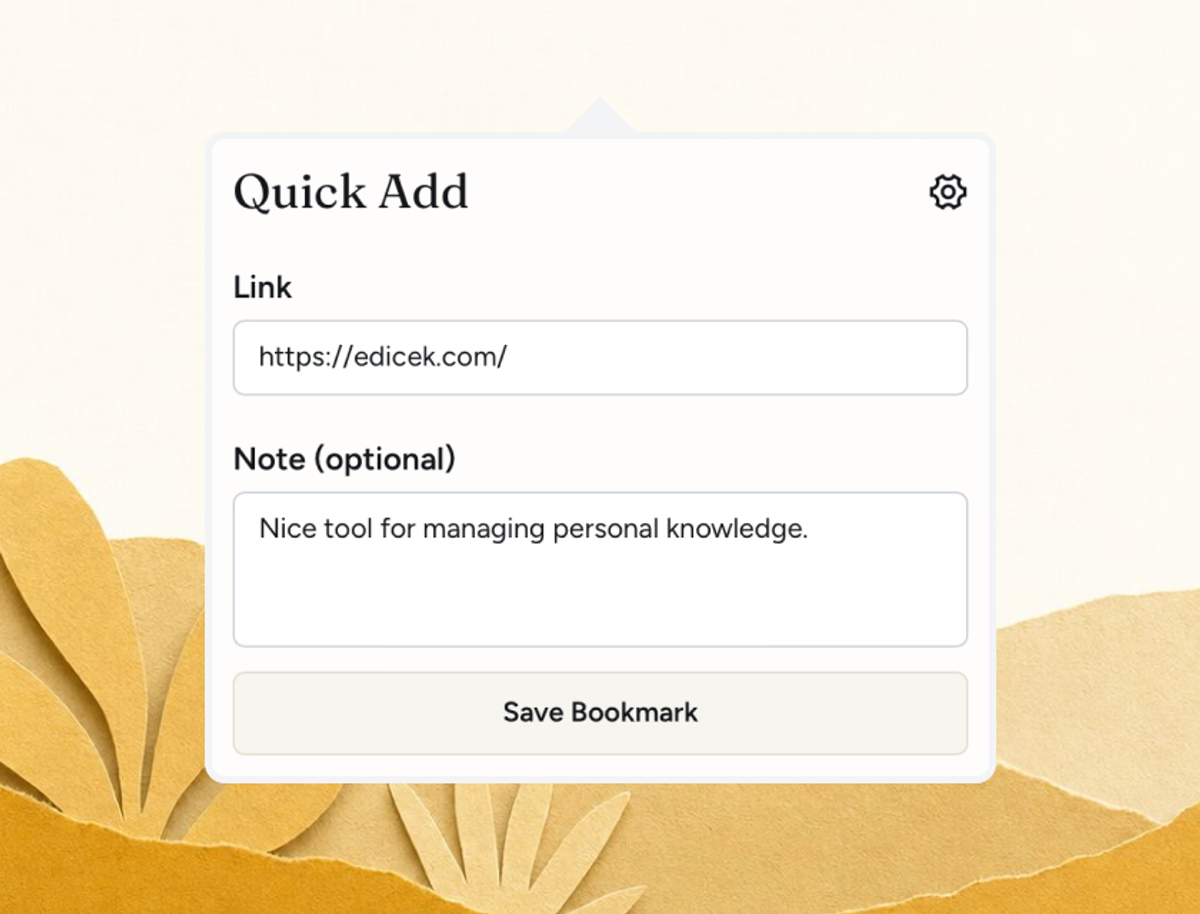
Save anything you find on the web with a single click - no copying links, no switching tabs, no leaving the page you're reading. The browser extension keeps you in your flow while your knowledge base fills up.

<DownloadButton href="https://chromewebstore.google.com/detail/edicek/mgpbhmoefhlnapfidailoifagkmnbfff" label="Get the Chrome extension" icon="download" href2="https://apps.apple.com/cz/app/edicek/id6757395657" label2="Get the Safari extension" icon2="download" />

<img src="https://mintcdn.com/edicek/gTB_yjO6_rYa_WRS/images/applications/extension.avif?fit=max&auto=format&n=gTB_yjO6_rYa_WRS&q=85&s=17ebdc671388c00cd5f870e8791168d6" alt="The Edicek browser extension popup open over a web page, ready to save." style={{ width: '100%', borderRadius: '14px', border: '1px solid #ecdfcd', display: 'block', margin: '0 0 6px' }} width="1200" height="914" data-path="images/applications/extension.avif" />

## Installing

Setup takes a minute - install the extension, then connect it to your account once. From there, saving is a single click.

<Tabs>
  <Tab title="Safari">
    <Steps>
      <Step title="Install the Mac app">The Safari extension comes bundled with the [Mac app](/applications/mac) - get it from the App Store.</Step>
      <Step title="Turn it on in Safari">Enable Edicek in Safari under `Settings` → `Extensions` and allow it to run.</Step>
      <Step title="Open the extension">Click the Edicek icon in Safari's toolbar. A popup opens, ready to connect to your account.</Step>

      <Step title="Get your access key">
        In the popup, under **Get your access key**, click **Open Setup Page**. It opens the [web app](https://my.edicek.com) - sign in if you're not already, then copy your access key.
      </Step>

      <Step title="Connect your account">Back in the popup, paste the key into **Paste your access key** and click **Connect**.</Step>

      <Step title="You did it!" icon="party-horn">
        The extension is linked to your account and ready to go. Find a page worth keeping, click the Edicek icon, add your **WHY** note, and save.
      </Step>
    </Steps>
  </Tab>

  <Tab title="Chrome">
    <Steps>
      <Step title="Install the extension">
        Add Edicek from the [Chrome Web Store](https://chromewebstore.google.com/detail/edicek/mgpbhmoefhlnapfidailoifagkmnbfff). It works in Chrome and other Chromium-based browsers like Edge, Brave,
        and Arc.
      </Step>

      <Step title="Open the extension">Click the Edicek icon in your toolbar - if you don't see it, pin the extension first. A popup opens, ready to connect to your account.</Step>

      <Step title="Get your access key">
        In the popup, under **Get your access key**, click **Open Setup Page**. It opens the [web app](https://my.edicek.com) - sign in if you're not already, then copy your access key.
      </Step>

      <Step title="Connect your account">Back in the popup, paste the key into **Paste your access key** and click **Connect**.</Step>

      <Step title="You did it!" icon="party-horn">
        The extension is linked to your account and ready to go. Find a page worth keeping, click the Edicek icon, add your **WHY** note, and save.
      </Step>
    </Steps>
  </Tab>
</Tabs>

## One-click saving

The extension lives in your browser toolbar. When you find something worth keeping, click the Edicek icon, add a quick note, and hit `Save` - that's it.

The page lands in your timeline seconds later, and Edicek processes it in the background: pulling in the page's text and transcribing video when the content calls for it.

<LoopVideo src="/videos/quick-start-save-from-browser.mp4" variant="classic" autoPreload={true} />

## The note field

Every save has a note field, and it's worth using. A few words about the **WHY** behind saving something gives your AI assistant real context - it makes [Search](/core-features/search) and [Chat](/core-features/chat) far more useful later.

Even *"for the tomato article idea"* or *"quote for the talk"* is enough to help the right card surface when you need it. Curious why this one habit matters so much? [The why behind Edicek](/getting-started/the-why-behind-edicek) goes deeper.

## What you can save

The extension works with virtually any web content, and Edicek detects the page type automatically - applying the best capture method without you choosing or configuring anything. See [card types](/core-features/cards) for what each kind keeps.

## The keyboard shortcut

The fastest way to save is without touching the mouse. Assign a shortcut once, then whenever you're browsing, press it and start typing your note - the save form opens ready for you.

Setting it up differs by browser.

<Tabs>
  <Tab title="Safari">
    <Steps>
      <Step title="Open Safari's extension settings">In Safari, go to `Settings` → `Extensions` and select Edicek.</Step>
      <Step title="Assign your shortcut">Under the keyboard shortcut field, set a shortcut like `⌘E`.</Step>
    </Steps>
  </Tab>

  <Tab title="Chrome">
    <Steps>
      <Step title="Open the shortcuts page">
        Click the `⋮` menu, go to **Settings** → **Extensions**, and open **Keyboard shortcuts**.

        Or jump straight there: go to `chrome://extensions/shortcuts` (in Edge, `edge://extensions/shortcuts`).
      </Step>

      <Step title="Assign your shortcut">Find Edicek and set a shortcut like `Ctrl+E` (or `Cmd+E` on Mac).</Step>
    </Steps>
  </Tab>
</Tabs>

> **Founder tip:** I keep mine on `Cmd+E` - E for Edicek, easy to remember. Wherever I am, whenever something's worth keeping, I hit it and start typing right away. And once the form is open, `Cmd+Enter` saves it - so I never reach for the mouse.

## Next steps

<Columns cols={2}>
  <Card title="Web" icon="globe" href="/applications/web">
    The full Edicek in your browser.
  </Card>

  <Card title="Mac" icon="laptop" href="/applications/mac">
    The native desktop app.
  </Card>
</Columns>