> ## Documentation Index
> Fetch the complete documentation index at: https://docs.edicek.com/llms.txt
> Use this file to discover all available pages before exploring further.

# iPhone & iPad

export const DownloadButton = ({href, label, icon, href2, label2, icon2, divider = true}) => <div style={{
  display: 'flex',
  flexWrap: 'wrap',
  gap: '10px',
  margin: divider ? '16px 0 28px' : '16px 0 10px',
  paddingBottom: divider ? '28px' : '0',
  borderBottom: divider ? '1px solid #ecdfcd' : 'none'
}}>
    <a href={href} target="_blank" rel="noreferrer" onMouseEnter={e => {
  e.currentTarget.style.background = '#333333';
}} onMouseLeave={e => {
  e.currentTarget.style.background = '#161616';
}} style={{
  display: 'inline-flex',
  alignItems: 'center',
  justifyContent: 'center',
  gap: '9px',
  height: '46px',
  padding: '0 22px',
  boxSizing: 'border-box',
  border: '1px solid transparent',
  borderRadius: '11px',
  background: '#161616',
  color: '#ffffff',
  fontWeight: 600,
  fontSize: '15px',
  lineHeight: 1,
  textDecoration: 'none',
  transition: 'background 0.15s ease'
}}>
      <svg width="17" height="17" viewBox="0 0 24 24" fill="none" stroke="currentColor" strokeWidth="2" strokeLinecap="round" strokeLinejoin="round" aria-hidden="true">
        {icon === 'open' ? <g>
            <path d="M7 17 17 7" />
            <path d="M8 7h9v9" />
          </g> : <g>
            <path d="M12 3v12" />
            <path d="m7 12 5 5 5-5" />
            <path d="M5 21h14" />
          </g>}
      </svg>
      {label}
    </a>
    {href2 ? <a href={href2} target="_blank" rel="noreferrer" onMouseEnter={e => {
  e.currentTarget.style.background = '#333333';
}} onMouseLeave={e => {
  e.currentTarget.style.background = '#161616';
}} style={{
  display: 'inline-flex',
  alignItems: 'center',
  justifyContent: 'center',
  gap: '9px',
  height: '46px',
  padding: '0 22px',
  boxSizing: 'border-box',
  border: '1px solid transparent',
  borderRadius: '11px',
  background: '#161616',
  color: '#ffffff',
  fontWeight: 600,
  fontSize: '15px',
  lineHeight: 1,
  textDecoration: 'none',
  transition: 'background 0.15s ease'
}}>
        <svg width="17" height="17" viewBox="0 0 24 24" fill="none" stroke="currentColor" strokeWidth="2" strokeLinecap="round" strokeLinejoin="round" aria-hidden="true">
          {icon2 === 'open' ? <g>
              <path d="M7 17 17 7" />
              <path d="M8 7h9v9" />
            </g> : <g>
              <path d="M12 3v12" />
              <path d="m7 12 5 5 5-5" />
              <path d="M5 21h14" />
            </g>}
        </svg>
        {label2}
      </a> : null}
  </div>;

export const LoopVideo = ({src, poster, variant, autoPreload}) => (variant === 'tall' || variant === 'classic') && typeof autoPreload === 'boolean' ? <div onMouseEnter={e => {
  const replay = e.currentTarget.querySelector('[data-replay]');
  if (replay) replay.style.opacity = '1';
}} onMouseLeave={e => {
  const replay = e.currentTarget.querySelector('[data-replay]');
  if (replay) replay.style.opacity = '0';
}} style={{
  position: 'relative',
  margin: '18px 0 6px',
  aspectRatio: variant === 'tall' ? '3 / 4' : '4 / 3',
  borderRadius: '14px',
  border: '1px solid #ecdfcd',
  overflow: 'hidden',
  background: '#FFFBF2'
}}>
    <video ref={el => {
  if (!el || el.dataset.lazyInit) return;
  el.dataset.lazyInit = '1';
  el.muted = true;
  const box = el.parentElement;
  const loading = box && box.querySelector('[data-loading]');
  const hideLoading = () => {
    if (loading && el.readyState >= 2) loading.style.opacity = '0';
  };
  el.addEventListener('loadeddata', hideLoading);
  el.addEventListener('playing', hideLoading);
  const startPlay = () => {
    el.play().catch(() => {});
  };
  if (autoPreload || typeof IntersectionObserver === 'undefined') {
    startPlay();
    return;
  }
  const io = new IntersectionObserver(entries => {
    entries.forEach(entry => {
      if (entry.isIntersecting) startPlay(); else el.pause();
    });
  }, {
    rootMargin: '150px'
  });
  io.observe(el);
}} muted loop playsInline preload={autoPreload ? 'auto' : 'none'} poster={poster} onClick={e => {
  const el = e.currentTarget;
  const pill = el.parentElement && el.parentElement.querySelector('[data-pill]');
  const show = (text, autoHide) => {
    if (!pill) return;
    pill.textContent = text;
    clearTimeout(pill._t);
    pill.style.opacity = '1';
    if (autoHide) {
      pill._t = setTimeout(() => {
        pill.style.opacity = '0';
      }, 900);
    }
  };
  if (el.paused) {
    el.play().catch(() => {});
    show('Unpaused', true);
  } else {
    el.pause();
    show('Paused', false);
  }
}} style={{
  position: 'absolute',
  inset: 0,
  width: '100%',
  height: '100%',
  margin: 0,
  objectFit: 'cover',
  display: 'block',
  cursor: 'pointer'
}}>
      <source src={src} type="video/mp4" />
    </video>
    <div data-loading style={{
  position: 'absolute',
  inset: 0,
  display: 'flex',
  alignItems: 'center',
  justifyContent: 'center',
  opacity: 1,
  transition: 'opacity 0.3s ease',
  pointerEvents: 'none',
  backgroundColor: '#FFFBF2',
  backgroundImage: 'url(/images/video-background.jpeg)',
  backgroundSize: 'auto 100%',
  backgroundPosition: 'center',
  backgroundRepeat: 'no-repeat',
  fontFamily: 'ui-monospace, SFMono-Regular, Menlo, monospace',
  fontSize: '11px',
  fontWeight: 600,
  letterSpacing: '0.08em',
  textTransform: 'uppercase',
  color: '#8a7f70'
}}>
      Video is loading…
    </div>
    <button data-replay type="button" aria-label="Replay from the start" onClick={e => {
  e.stopPropagation();
  const box = e.currentTarget.parentElement;
  const video = box && box.querySelector('video');
  const pill = box && box.querySelector('[data-pill]');
  if (pill) pill.style.opacity = '0';
  if (video) {
    video.currentTime = 0;
    video.play().catch(() => {});
  }
}} style={{
  position: 'absolute',
  top: '10px',
  left: '10px',
  display: 'flex',
  alignItems: 'center',
  justifyContent: 'center',
  width: '32px',
  height: '32px',
  padding: 0,
  opacity: 0,
  transition: 'opacity 0.25s ease',
  color: '#ffffff',
  background: 'rgba(19, 22, 27, 0.72)',
  backdropFilter: 'blur(4px)',
  border: 'none',
  borderRadius: '999px',
  cursor: 'pointer'
}}>
      <svg width="16" height="16" viewBox="0 0 24 24" fill="none" stroke="currentColor" strokeWidth="2" strokeLinecap="round" strokeLinejoin="round" aria-hidden="true">
        <path d="M3 12a9 9 0 1 0 3-6.7L3 8" />
        <path d="M3 3v5h5" />
      </svg>
    </button>
    <div data-pill style={{
  position: 'absolute',
  top: '10px',
  right: '10px',
  opacity: 0,
  transition: 'opacity 0.25s ease',
  fontFamily: 'ui-monospace, SFMono-Regular, Menlo, monospace',
  fontSize: '11px',
  fontWeight: 600,
  letterSpacing: '0.06em',
  textTransform: 'uppercase',
  color: '#ffffff',
  background: 'rgba(19, 22, 27, 0.72)',
  backdropFilter: 'blur(4px)',
  borderRadius: '999px',
  padding: '4px 10px',
  pointerEvents: 'none'
}}>
      Paused
    </div>
  </div> : <div style={{
  margin: '18px 0 6px',
  padding: '12px 16px',
  borderRadius: '10px',
  border: '2px solid #d33',
  background: '#ffe5e5',
  color: '#990000',
  fontFamily: 'ui-monospace, SFMono-Regular, Menlo, monospace',
  fontSize: '13px',
  lineHeight: 1.5
}}>
      {'<LoopVideo>'} needs <strong>variant</strong> (<strong>"tall"</strong> = 3:4 or <strong>"classic"</strong> = 4:3)
      and <strong>autoPreload</strong> ({'{true}'} or {'{false}'}).
    </div>;

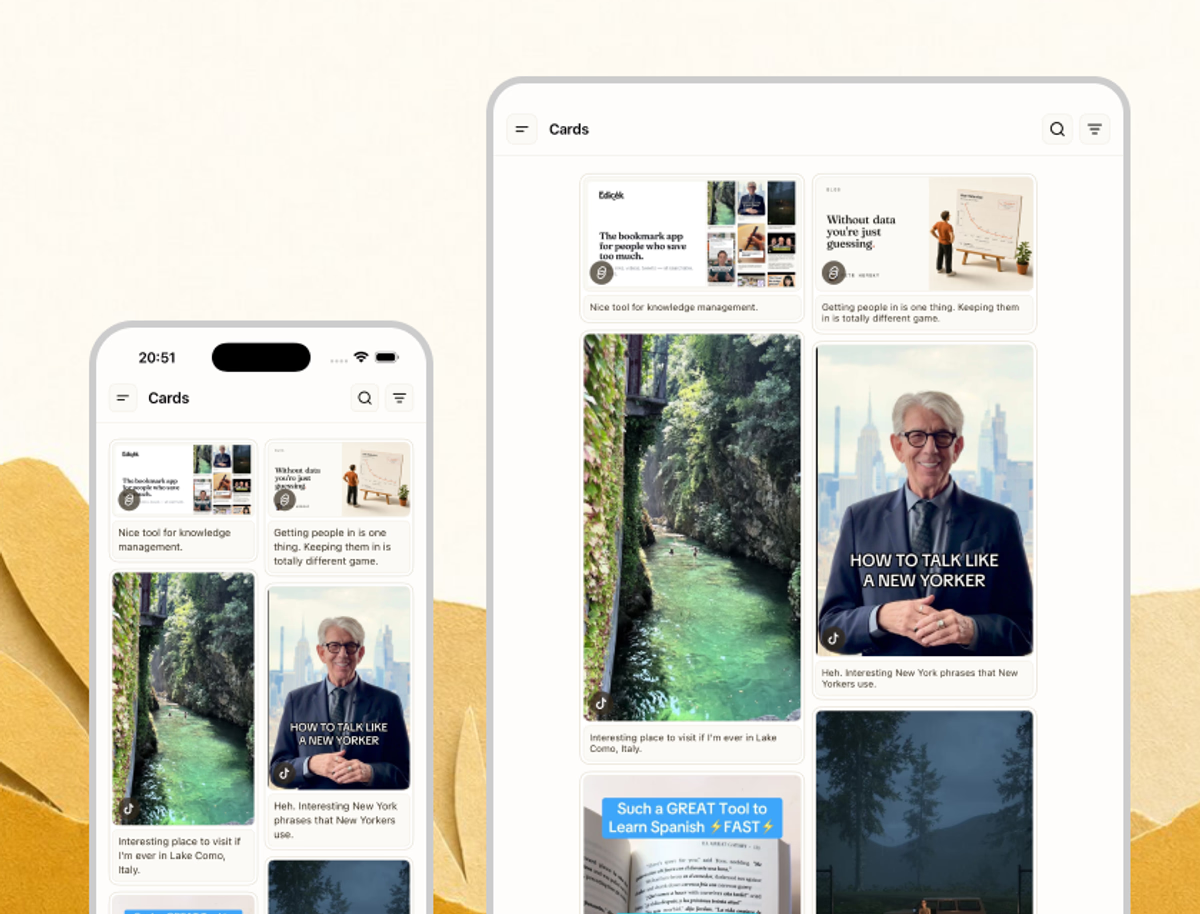
Your knowledge base in your pocket and on the couch. Save whatever you find while you're out, capture a quick note, and chat with your AI assistant - all from the native iOS app, on iPhone and iPad alike.

Of all the ways to use Edicek, this might be the most important one. As good as the native Mac and web apps are, your phone is the one that's always with you - and most saving happens right where you consume content, out and about, whenever something catches your eye. That's what makes this the app you'll reach for most.

<DownloadButton href="https://apps.apple.com/cz/app/edicek/id6757395657" label="Download on the App Store" icon="download" />

<img src="https://mintcdn.com/edicek/gTB_yjO6_rYa_WRS/images/applications/iphone.avif?fit=max&auto=format&n=gTB_yjO6_rYa_WRS&q=85&s=c45bf916a9172d23ea5cc6eda310d657" alt="The Edicek iOS app on iPhone - your timeline of saved cards." style={{ width: '100%', borderRadius: '14px', border: '1px solid #ecdfcd', display: 'block', margin: '0 0 6px' }} width="1200" height="914" data-path="images/applications/iphone.avif" />

## Save from anywhere with the share sheet

The fastest way to save on iOS is the share sheet. Reading an article in Safari, watching a video, or scrolling a feed - tap `Share`, choose Edicek, add a quick note, and it's saved. No copying links or switching apps.

It's not just Safari - save straight from [YouTube](/card-types/youtube), [TikTok](/card-types/tiktok), [Twitter/X](/card-types/twitter-x), and almost any other app. The only requirement is that the app can share a link.

<LoopVideo src="/videos/app-ios-share-sheet.mp4" variant="tall" autoPreload={true} />

<Info>First time? The [Quick start](/getting-started/quick-start) shows how to add Edicek to your share sheet favorites so it's always one tap away.</Info>

## Save from the app

You can also add something without the share sheet. In the app, tap **New Bookmark** to keep a link - paste the URL and add a note about **WHY** it matters - or **New Note** to jot down a thought. Fill it in and save.

<Tabs>
  <Tab title="Bookmark">
    <LoopVideo src="/videos/app-ios-new-bookmark.mp4" variant="tall" autoPreload={false} />
  </Tab>

  <Tab title="Note">
    <LoopVideo src="/videos/app-ios-new-note.mp4" variant="tall" autoPreload={false} />
  </Tab>
</Tabs>

## Home screen widget

Put Edicek one tap away by adding the home screen widget. From the widget you can start a new [Chat](/core-features/chat) conversation, create a new [note](/card-types/notes), or just open the app to your timeline.

When something becomes part of your day, it should sit right where your thumb lands. Edicek is an app you'll open again and again, so the widget puts it a single tap away - a new note or a fresh chat in an instant, without hunting for the icon first.

To add it, long-press your home screen, tap `+`, search for Edicek, and place the widget where you want it.

<LoopVideo src="/videos/quick-start-add-widget-home-screen.mp4" variant="tall" autoPreload={false} />

## More room on iPad

On iPad it's exactly the same Edicek as on iPhone - every feature works the same, just with more room to spread out. And since iPad is where so much reading and watching happens, it matters that saving works right there too: the share sheet is built in, so tap `Share`, choose Edicek, and it lands on your timeline just like on your phone.

The extra width also lets the sidebar stay open beside your content, so you can move between your timeline, a card you're reading, and a chat without losing your place.

## Tips

* **Don't forget the browser extension** - You'll want to save from your computer too, not just your phone. Install the [browser extension](/applications/browser-extension) so anything you find on desktop lands in the same timeline.
* **Put the widget on your home screen** - Add the [home screen widget](#home-screen-widget) for one-tap access to a new chat, a new note, or the app - no digging around your phone.
* **Add a note in the share sheet** - The **WHY** you type when saving is what makes the AI's answers about that card genuinely useful later.
* **Keep the sidebar open on iPad** - The iPad's width means you rarely have to hide your chat history or timeline - use both at once.
* **Continue chats across devices** - Start a question on iPhone and pick it up on the web - your chat history follows you.

## Next steps

<Columns cols={2}>
  <Card title="Mac" icon="laptop" href="/applications/mac">
    The native desktop app.
  </Card>

  <Card title="Web" icon="globe" href="/applications/web">
    The full Edicek in your browser.
  </Card>
</Columns>