

Installing
Setup takes a minute - install the extension, then connect it to your account once. From there, saving is a single click.- Safari
- Chrome
1
Install the Mac app
The Safari extension comes bundled with the Mac app - get it from the App Store.
2
Turn it on in Safari
Enable Edicek in Safari under
Settings → Extensions and allow it to run.3
Open the extension
Click the Edicek icon in Safari’s toolbar. A popup opens, ready to connect to your account.
4
Get your access key
In the popup, under Get your access key, click Open Setup Page. It opens the web app - sign in if you’re not already, then copy your access key.
5
Connect your account
Back in the popup, paste the key into Paste your access key and click Connect.
You did it!
The extension is linked to your account and ready to go. Find a page worth keeping, click the Edicek icon, add your WHY note, and save.
One-click saving
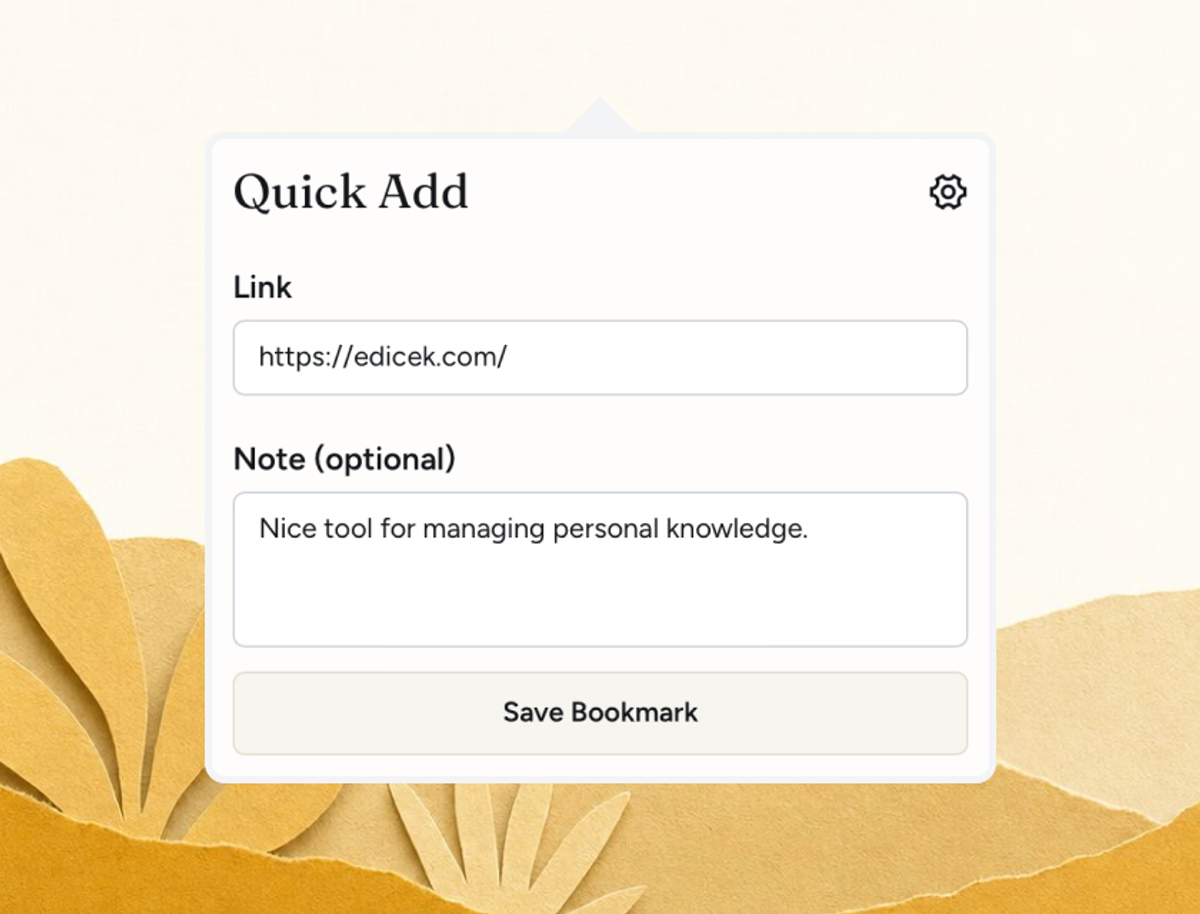
The extension lives in your browser toolbar. When you find something worth keeping, click the Edicek icon, add a quick note, and hitSave - that’s it.
The page lands in your timeline seconds later, and Edicek processes it in the background: pulling in the page’s text and transcribing video when the content calls for it.
The note field
Every save has a note field, and it’s worth using. A few words about the WHY behind saving something gives your AI assistant real context - it makes Search and Chat far more useful later. Even “for the tomato article idea” or “quote for the talk” is enough to help the right card surface when you need it. Curious why this one habit matters so much? The why behind Edicek goes deeper.What you can save
The extension works with virtually any web content, and Edicek detects the page type automatically - applying the best capture method without you choosing or configuring anything. See card types for what each kind keeps.The keyboard shortcut
The fastest way to save is without touching the mouse. Assign a shortcut once, then whenever you’re browsing, press it and start typing your note - the save form opens ready for you. Setting it up differs by browser.- Safari
- Chrome
1
Open Safari's extension settings
In Safari, go to
Settings → Extensions and select Edicek.2
Assign your shortcut
Under the keyboard shortcut field, set a shortcut like
⌘E.Founder tip: I keep mine onCmd+E- E for Edicek, easy to remember. Wherever I am, whenever something’s worth keeping, I hit it and start typing right away. And once the form is open,Cmd+Entersaves it - so I never reach for the mouse.
Next steps
Web
The full Edicek in your browser.
Mac
The native desktop app.